
Audiominutes is a simple service to set-up and operate, but there are a few steps to take to ensure things go smoothly. The main considerations are: General Information, Choice of Tablet, Audio Considerations, Connection to the Internet, Testing, Connection to committee management system, and Marketing.
Audiominutes combines an Android application and a set of web services resulting in a simple way to stream audio over the internet and create an archive of the resulting recordings for later playback. A list of forthcoming meetings is created on the system in advance (usually by importing this list from another platform such as Modern Gov or CMIS but meetings can also be created by email). The Audiominutes player appears on the appropriate pages that incorporate a code snippet.
The Audiominutes system is designed to live stream and archive meetings that are held in public. No information is transported, stored or cached that cannot otherwise be found in the public domain. Although the Audiominutes app includes the option to turn off public broadcasting, this feature should not be used as a means of securing Part 2 meetings. For items to be covered under Part 2, either the stream should be 'Stopped' via the app, or the mute button in the app should be deployed.
The Audiominutes app runs on any Android device (phone or tablet) running Android version 4.0 or above. This device should be dedicated as 'single use'; for audio webcasting only. Chromebooks supporting Google Play store are also compatible with Audiominutes.
Some councils elect to connect their Audiominutes device to the Internet using a mobile phone SIM and 3/4G so it's worth considering choosing a device with mobile support as this keeps your options open in the event of congestion on your local WiFi network or other IT related issues.
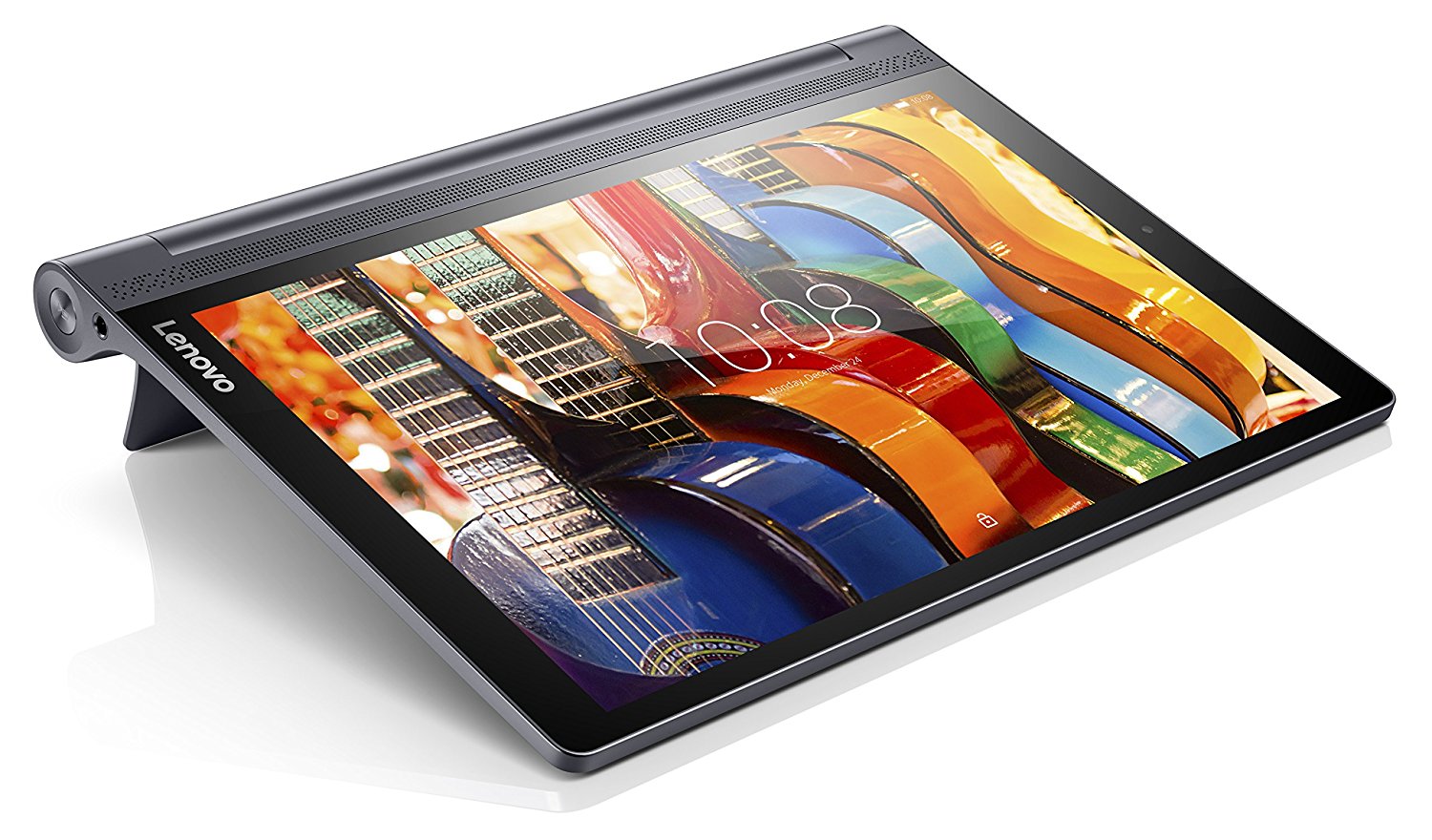
Recommended model without mobile support: Lenovo YT3-X50F (Part number ZA0H0031GB). With mobile Internet support: Lenovo YOGA Tablet 3 Pro with Built-in Projector (Wifi+LTE, Part number ZA0G0052GB).
Audiominutes relies on good quality audio – if the audio we receive is of high quality, that's what the public will hear; conversely, if the audio we receive is poor quality, low volume, or suffers interference, then we can't improve it. Most councils have relationships with audio consultants/engineers who maintain their audio equipment – if there is any doubt over audio quality, these are the people who can rectify.
Audiominutes is designed to connect to the microphone system already in the council chamber and feed this into the 3.5 mm microphone socket fitted to all Android phones and tablets. An audio attenuator is required to ensure that 'mic level' audio is delivered to the tablet and a 'dummy load' is applied so that the internal microphone in the tablet is switched off.
Audiominutes can support and display speaker identities and voter behaviour if required and if the microphone system you are using supports this too.
Audio is sampled down to 11,025 Hz, 16 Bit, mono at 64kbps and encoded into MP3 format; a maximum upload capacity of 100kbps is required, so mobile Internet is fine. The audio is stored in MP3 format, occupies around 27 MB per hour recorded and is your copyright.
Audiominutes relies on a good connection to the Internet to control and stream meeting audio. A maximum upload capacity of 100kbps is required, so mobile Internet is fine. Almost all issues relating to the operation of Audiominutes relate to Internet connectivity so it's worth getting this right from the start.
We recommend that your IT department are involved at an early stage and provide you with a WiFi Internet connection that will not be affected by large numbers of other users contending for the available bandwidth; has good coverage and does not time out after a set period.
The Audiominutes app encodes and then streams audio packets over the Internet connection either on port 80 or port 8000 (configurable via the app) to our server located at live.audiominutes.com using standard audio streaming protocol (icecast.org). The service is supported with API calls to and from api.audiominutes.com.
Audiominutes supports dual audio stream controlled from a single tablet – please contact us for details.
If no connection is available then the offline recorder mode can be used – after the meeting, upload the meeting from the Audiominutes 'File Manager' and call Audiominutes customer support who will then assign the audio to the desired meeting.
Check your tablet is fully charged and that you are connected to the Internet through whatever access you will be using when audio webcasting. Open the Google Play store, search and download Audiominutes (from Confabulate Limited).
In the tablet settings menu, set the display sleep setting to 'Never'.
Run Audiominutes. Plug your Audiominutes Attenuator into the 3.5 mm socket in your tablet – the fixed cable with the angled connector is the one that slots into the tablet. You'll see the notification 'Microphone Connected' appear on screen. From the menu top left, select 'Prepare' and click on the test 'Guest' meeting listed. Turn your microphones on. When you speak into the microphones, you'll see the level indicator (bottom right) fluctuating. Ideally this indicator should flicker from -15db to -5db. Press 'Record' (bottom left), the indicator should now go green and say 'Network up' – you are now streaming to the Internet.
On another device, go to www.audiominutes.com/guest. Click on the blue button to start the stream playing. Compare the volume with BBC iPlayer – they should be the same. If not, adjust the attenuator switch settings.
No web development is required from clients to support Audiominutes.
Mod Gov users can set up and test Audiominutes on a hidden link. Once you have your Audiominutes ID from us, log into Issue Manager with 'DS Admin' rights, then click 'Configure', 'Advanced', 'System Parameter' and look for 'AudiominutesId' – add your ID (all lower case). To see Audiominutes in action, just add &AMID=[your id] after any meeting link. For the public launch, change 'IsAudiominsLive' to yes.
Please contact support@audiominutes.com to arrange.